The Alphabet Animal Adventures Across America App is a free web app that goes with Alphabet Animal Adventures Across America, the A to Z picture book for ages 4 to 8 by Olivia Weisman and Loren Weisman. It opens in the web browser on a phone, a tablet or a computer, and you can add it to your device so it opens from its own icon.
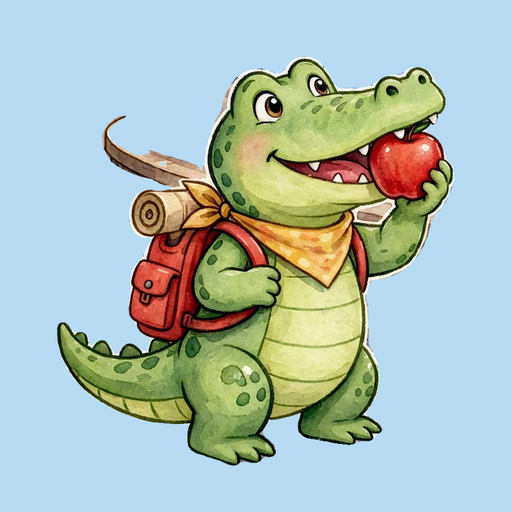
This is the app icon, Arnie the Alert Alligator. After you add the app to a phone or tablet, look for Arnie, named A to Zeebee, on your home screen.
Add the App to Your Device
Pick your device:
The app is free, with no account. You only add it once.
iPhone
Safari: open lorenweisman.com/alphabet-app in Safari. The steps depend on your iPhone’s software. To see it, open Settings, tap General, then tap About.
iOS 18:
- Tap the Share button in the menu bar.
- Scroll down the list of options, then tap Add to Home Screen. If you do not see Add to Home Screen, scroll to the bottom of the list, tap Edit Actions, then tap Add to Home Screen.
- Follow the steps on the screen to finish.
iOS 26:
- Tap the More button, then tap Share. If your Tabs layout is Bottom or Top, tap the Share button.
- Scroll down the list of options, then tap Add to Home Screen. If you do not see Add to Home Screen, scroll to the bottom of the list, tap Edit Actions, then tap Add to Home Screen.
- Turn on Open as Web App.
- Tap Add.
iOS 27:
- Tap the Page Menu button, then tap Share. If your Tabs layout is Bottom or Top, tap the Share button.
- Scroll down the list of options, then tap Add to Home Screen. If you do not see Add to Home Screen, scroll to the bottom of the list, tap Edit Actions, then tap Add to Home Screen.
- Turn on Open as Web App.
- Tap Add.
Chrome:
- Open lorenweisman.com/alphabet-app in Chrome.
- On the right of the address bar, tap Share.
- Find and tap Add to Home Screen.
- Confirm or edit the details, then tap Add.
iPad
Safari: open lorenweisman.com/alphabet-app in Safari. The steps depend on your iPad’s software. To see it, open Settings, tap General, then tap About.
iPadOS 18:
- Tap the Share button in the menu bar, then tap Add to Home Screen.
- Follow the steps on the screen to finish.
iPadOS 26:
- Tap the Share button, tap the More button, then tap Add to Home Screen.
- Turn on Open as Web App.
- Tap Add.
iPadOS 27:
- Tap the Share button, tap View More, then tap Add to Home Screen.
- Turn on Open as Web App.
- Tap Add.
Chrome:
- Open lorenweisman.com/alphabet-app in Chrome.
- On the right of the address bar, tap Share.
- Find and tap Add to Home Screen.
- Confirm or edit the details, then tap Add.
Android phone or tablet
Chrome:
- Open lorenweisman.com/alphabet-app in Chrome.
- On the right of the address bar, tap More, then tap Install and create shortcut.
- Tap Install.
- Follow the steps on the screen to finish.
Firefox:
- Open lorenweisman.com/alphabet-app in Firefox.
- Tap the three-dot menu button.
- Tap Install.
- Tap Add automatically.
Windows computer
Microsoft Store: open the app in the Microsoft Store and install it from there.
Microsoft Edge:
- Open lorenweisman.com/alphabet-app in Edge.
- Click the App available icon in the address bar.
- Click Install.
The app is then in the Start menu, and you can pin it to the taskbar.
Chrome:
- Open lorenweisman.com/alphabet-app in Chrome.
- At the top right of the address bar, select Install. If it is not there, at the top right select More, then Cast, save, and share, then Install page as app.
- Follow the steps on the screen to install it.
Mac computer
Safari (macOS Sonoma 14 or later):
- Open lorenweisman.com/alphabet-app in Safari.
- From the menu bar, choose File, then Add to Dock. Or click the Share button in the Safari toolbar, then choose Add to Dock.
- Type the name you want for the app, then click Add.
Chrome:
- Open lorenweisman.com/alphabet-app in Chrome.
- At the top right of the address bar, select Install. If it is not there, at the top right select More, then Cast, save, and share, then Install page as app.
- Follow the steps on the screen to install it.
Any other browser: use the app in your browser at lorenweisman.com/alphabet-app. To add it to your device, open it in one of the browsers above.
What the App Does
The app has four parts.
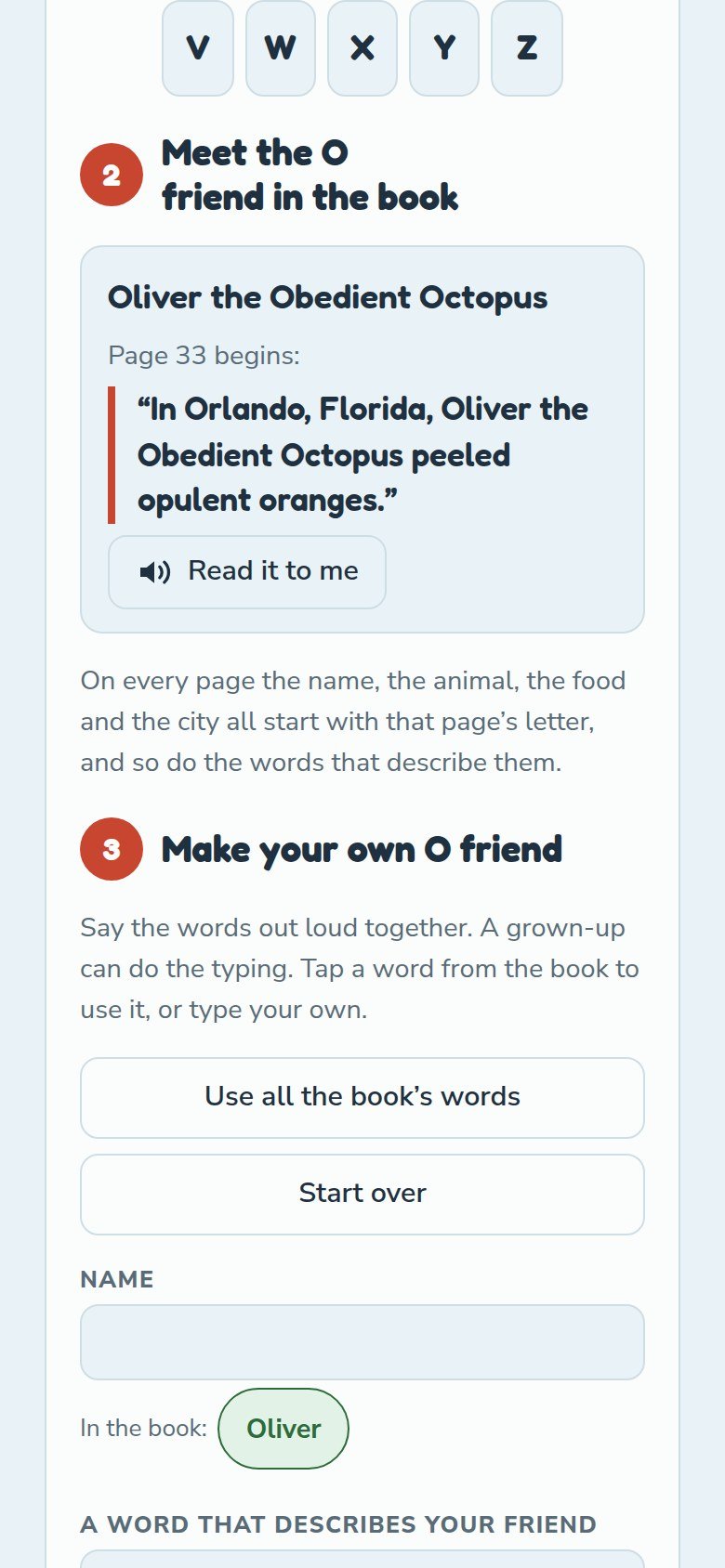
- Make a friend. Pick a letter, meet the friend from the book for that letter, then make your own friend for the same letter: a name, a word that describes them, an animal, a food and a place, all starting with that letter. Tap the book’s words to use them, or type your own. Then hear it read out loud and save it.
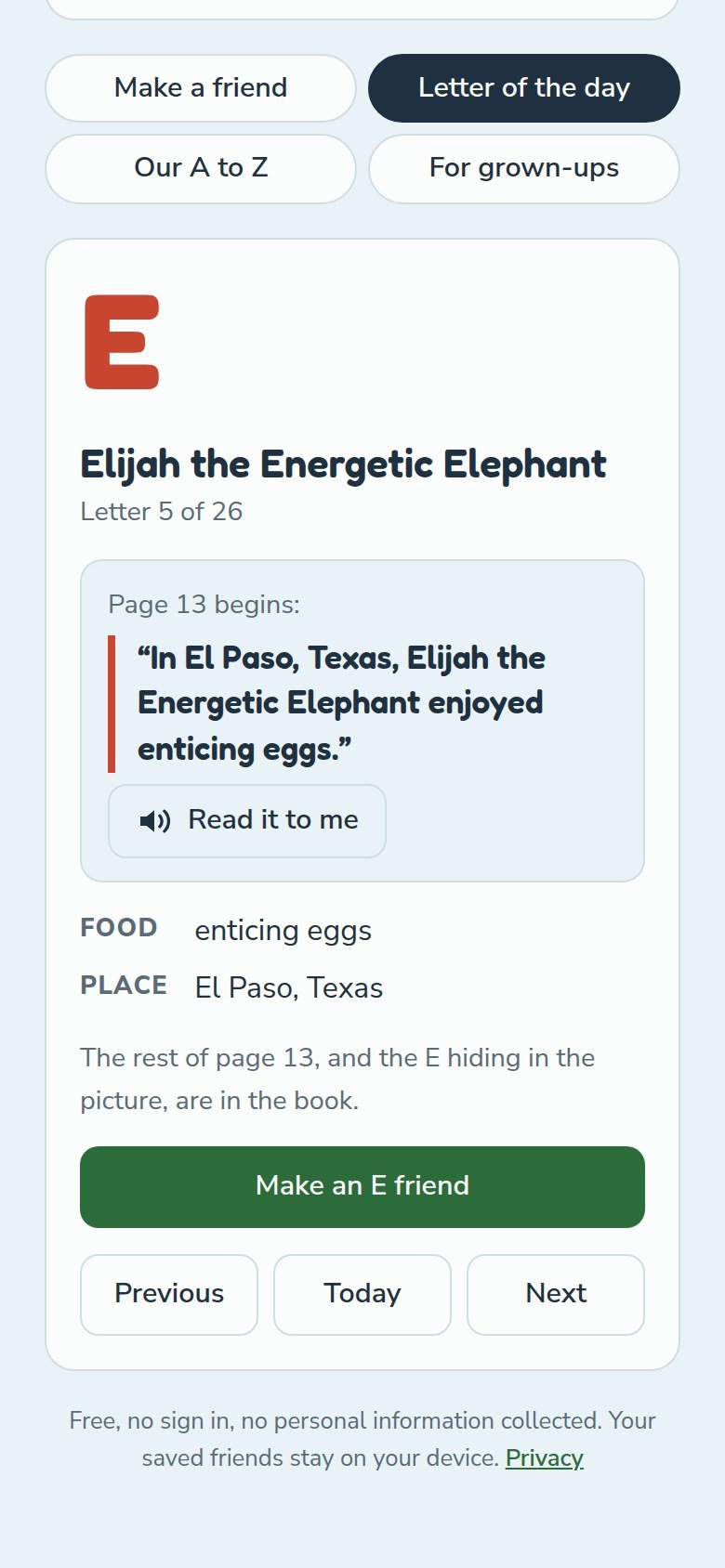
- Letter of the day. One letter each day, with the line that begins that letter’s page in the book, the food and the place.
- Our A to Z. Every friend you have saved, letter by letter, with a bar that shows how many of the twenty six letters are done. It can be printed or copied.
- For grown-ups. Where to get the book, and the book’s records. This part opens only after a grown-up answers a question.
For Parents and Teachers
- It is free. There is nothing to buy inside it and no ads.
- There is no sign in and no account.
- What a child types and saves stays on that phone, tablet or computer. The app does not send it anywhere.
- Every link that leaves the app is under For grown-ups, behind a grown-up question.
- Read it to me uses only a reading voice that runs on the device itself. If the device has none, the button does not show.
- After the first visit, it opens without an internet connection.
- Full details are in the privacy policy.
On the Microsoft Store
For Windows computers, the app is also in the Microsoft Store, free, from Dadau Publishing.
Get it from the Microsoft Store
Age Rating
US/CANADA

EUROPE

GERMANY

Rated October 1, 2026 through the International Age Rating Coalition (IARC), as shown with the app on the Microsoft Store: E for Everyone (ESRB) in the United States and Canada, PEGI 3 in Europe, and USK ab 0 Jahren in Germany, with the USK note “Inhalte für verschiedene Altersgruppen” (contents for different age groups).
Questions and Answers
Is the Alphabet Animal Adventures Across America App free?
Yes. There is nothing to buy inside it, no ads and no account.
What ages is it for?
Children ages 4 to 8, with a grown-up. It is rated E for Everyone (ESRB), PEGI 3 and USK ab 0 Jahren on the Microsoft Store.
Does the app collect personal information?
No. What a child types and saves stays on that device. The app does not send it anywhere. Details are in the privacy policy.
How do I add it to an iPhone or iPad?
Open lorenweisman.com/alphabet-app in Safari, tap Share, then Add to Home Screen. The steps for each iOS and iPadOS version are under iPhone and iPad.
Is it in the Microsoft Store?
Yes, free, from Dadau Publishing: Alphabet Animal Adventures Across America in the Microsoft Store.
Does it work without the internet?
Yes. After the first visit, it opens without an internet connection.
More
- Alphabet Animal Adventures Across America, the book.
- Trade and library guide, for booksellers, librarians, teachers and schools.
- Dadau Publishing, the imprint behind the book.
- Olivia Weisman.
- Loren Weisman.
- Alphabet Animal Adventures Across America on Amazon by Country, every Amazon store that sells the book.