The Loren Weisman App is a free web app with the talks, the quotes, the Wait What Really OK podcast, the videos, the books and the contact details of brand communications and optics strategist Loren Weisman. It opens in the web browser on a phone, a tablet or a computer, and you can add it to your device so it opens from its own icon.

This is the app icon, the Loren Weisman lightbulb. After you add the app to a phone or tablet, look for the lightbulb, named Loren Weisman, on your home screen.
Add the App to Your Device
Pick your device:
The app is free, with no account. You only add it once.
iPhone
Safari: open lorenweisman.com/app in Safari. The steps depend on your iPhone’s software. To see it, open Settings, tap General, then tap About.
iOS 18:
- Tap the Share button in the menu bar.
- Scroll down the list of options, then tap Add to Home Screen. If you do not see Add to Home Screen, scroll to the bottom of the list, tap Edit Actions, then tap Add to Home Screen.
- Follow the steps on the screen to finish.
iOS 26:
- Tap the More button, then tap Share. If your Tabs layout is Bottom or Top, tap the Share button.
- Scroll down the list of options, then tap Add to Home Screen. If you do not see Add to Home Screen, scroll to the bottom of the list, tap Edit Actions, then tap Add to Home Screen.
- Turn on Open as Web App.
- Tap Add.
iOS 27:
- Tap the Page Menu button, then tap Share. If your Tabs layout is Bottom or Top, tap the Share button.
- Scroll down the list of options, then tap Add to Home Screen. If you do not see Add to Home Screen, scroll to the bottom of the list, tap Edit Actions, then tap Add to Home Screen.
- Turn on Open as Web App.
- Tap Add.
Chrome:
- Open lorenweisman.com/app in Chrome.
- On the right of the address bar, tap Share.
- Find and tap Add to Home Screen.
- Confirm or edit the details, then tap Add.
iPad
Safari: open lorenweisman.com/app in Safari. The steps depend on your iPad’s software. To see it, open Settings, tap General, then tap About.
iPadOS 18:
- Tap the Share button in the menu bar, then tap Add to Home Screen.
- Follow the steps on the screen to finish.
iPadOS 26:
- Tap the Share button, tap the More button, then tap Add to Home Screen.
- Turn on Open as Web App.
- Tap Add.
iPadOS 27:
- Tap the Share button, tap View More, then tap Add to Home Screen.
- Turn on Open as Web App.
- Tap Add.
Chrome:
- Open lorenweisman.com/app in Chrome.
- On the right of the address bar, tap Share.
- Find and tap Add to Home Screen.
- Confirm or edit the details, then tap Add.
Android phone or tablet
Chrome:
- Open lorenweisman.com/app in Chrome.
- On the right of the address bar, tap More, then tap Install and create shortcut.
- Tap Install.
- Follow the steps on the screen to finish.
Firefox:
- Open lorenweisman.com/app in Firefox.
- Tap the three-dot menu button.
- Tap Install.
- Tap Add automatically.
Windows computer
Microsoft Store: open the app in the Microsoft Store and install it from there.
Microsoft Edge:
- Open lorenweisman.com/app in Edge.
- Click the App available icon in the address bar.
- Click Install.
The app is then in the Start menu, and you can pin it to the taskbar.
Chrome:
- Open lorenweisman.com/app in Chrome.
- At the top right of the address bar, select Install. If it is not there, at the top right select More, then Cast, save, and share, then Install page as app.
- Follow the steps on the screen to install it.
Mac computer
Safari (macOS Sonoma 14 or later):
- Open lorenweisman.com/app in Safari.
- From the menu bar, choose File, then Add to Dock. Or click the Share button in the Safari toolbar, then choose Add to Dock.
- Type the name you want for the app, then click Add.
Chrome:
- Open lorenweisman.com/app in Chrome.
- At the top right of the address bar, select Install. If it is not there, at the top right select More, then Cast, save, and share, then Install page as app.
- Follow the steps on the screen to install it.
Any other browser: use the app in your browser at lorenweisman.com/app. To add it to your device, open it in one of the browsers above.
What the App Does
The app has six parts.
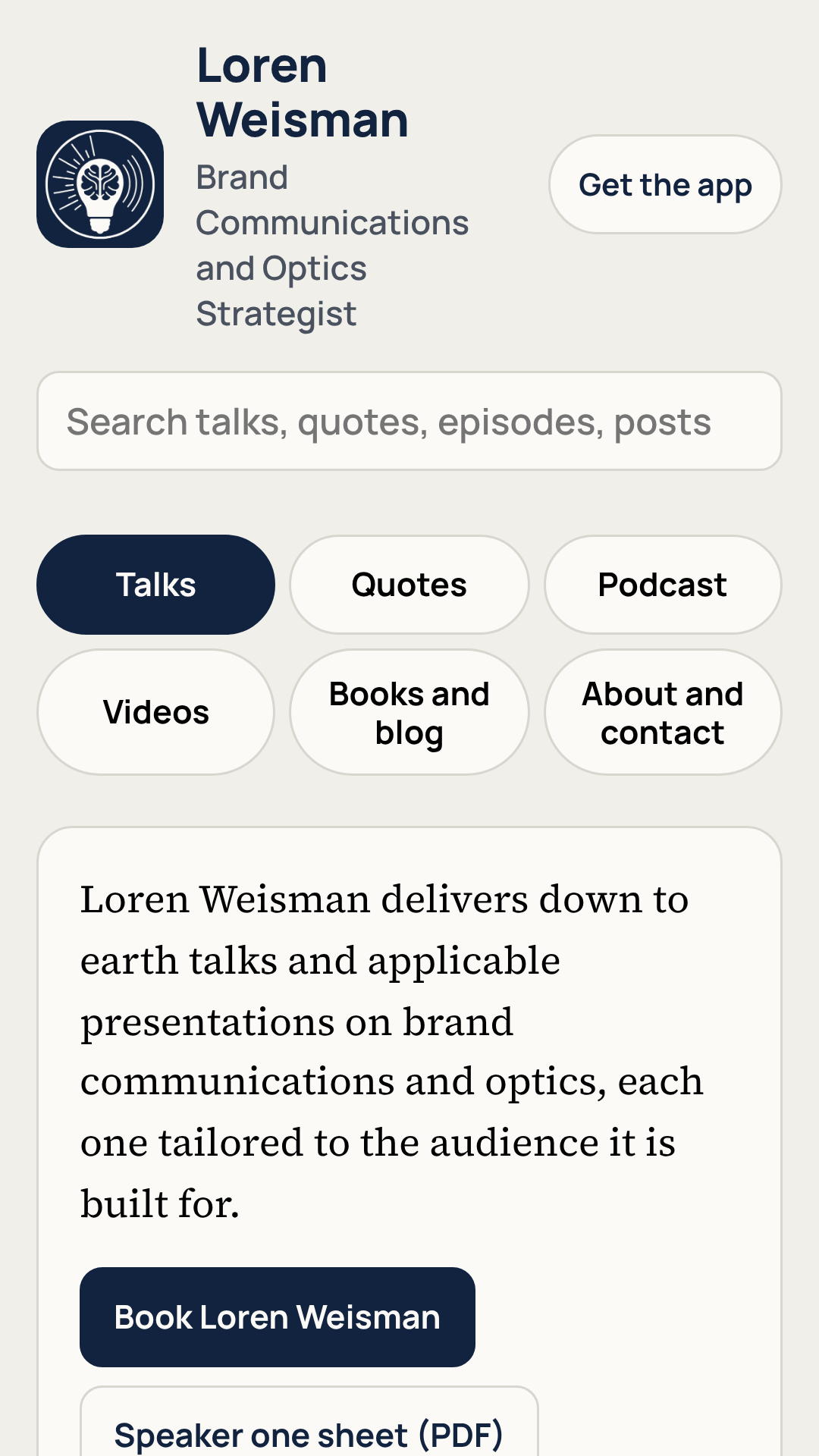
- Talks. Eight featured talk titles, each with the focus of the talk, the takeaways and touch points, the full outline and the talk sheet, plus the frequently requested and a la carte titles. Ask about a talk by email from the talk itself.
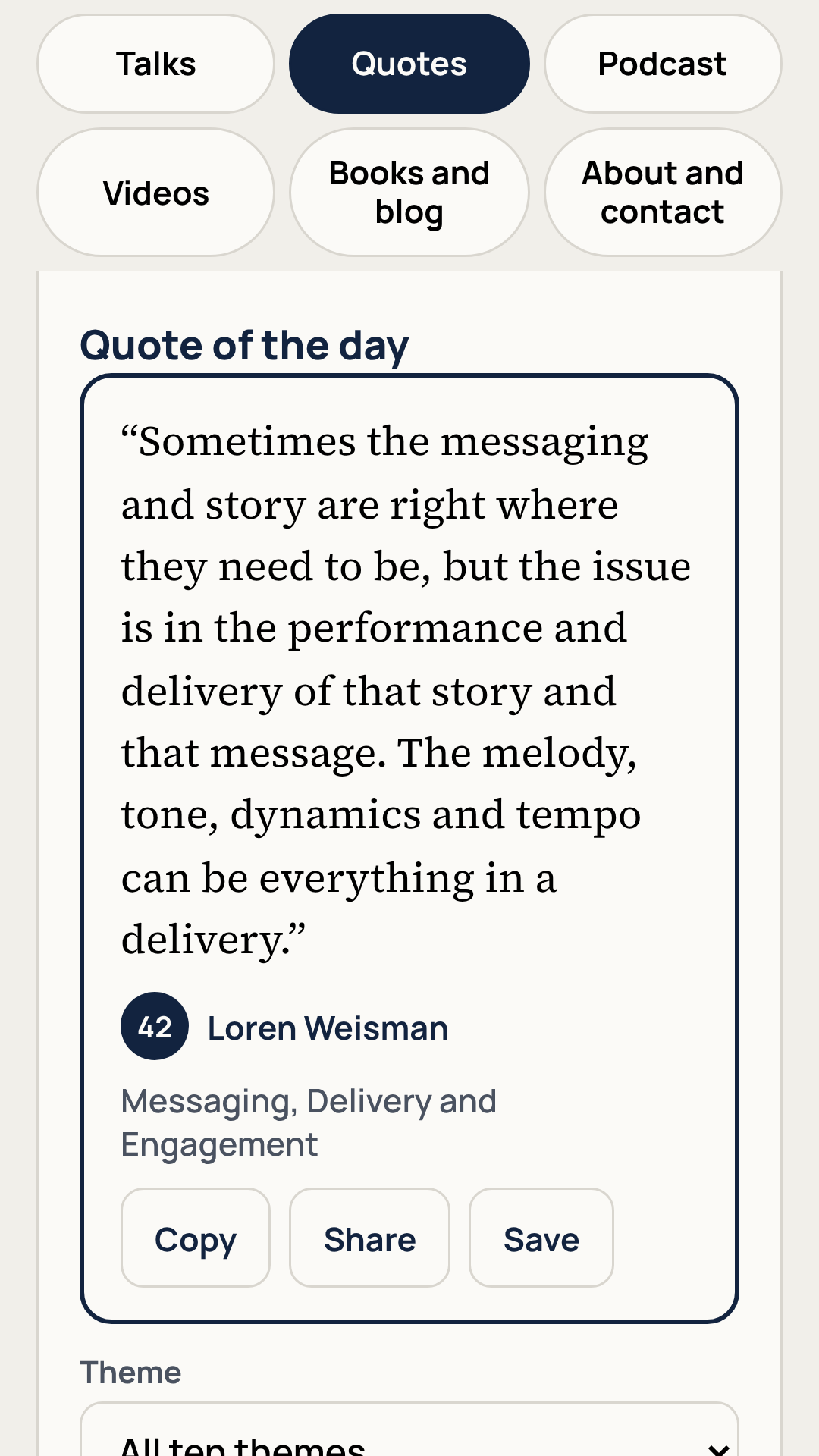
- Quotes. The Top 100 Loren Weisman Quotes in ten themes, with a quote of the day. Copy a quote with its credit, share it, or save it on the device.
- Podcast. Every Wait What Really OK episode page, most with the full written transcription, and the links to listen.
- Videos. The video pages on this site and the short videos from the Loren Weisman Videos channel on YouTube.
- Books and blog. The books and the blog posts.
- About and contact. The short bio, email and phone, a contact card to save, and the records held by libraries and platforms other than this site.
One search covers the talks, the quotes, the episodes, the videos and the posts.
Privacy
- It is free. There is nothing to buy inside it and no ads.
- There is no sign in and no account.
- Quotes you save stay on that phone, tablet or computer. The app does not send them anywhere.
- After the first visit, it opens without an internet connection.
- Full details are in the privacy policy.
On the Microsoft Store
For Windows computers, the app is also in the Microsoft Store, free, from Dadau Publishing.
Get it from the Microsoft Store
Age Rating
UNITED STATES

EUROPE

GERMANY

Rated through the International Age Rating Coalition (IARC), as shown with the app on the Microsoft Store: T for Teen (ESRB) in the United States, with the ESRB note “Diverse Content: Discretion Advised”; PEGI 3 in Europe; and USK ab 12 Jahren in Germany, with the USK note “Content for different age groups”.
Questions and Answers
Is the Loren Weisman App free?
Yes. There is nothing to buy inside it, no ads and no account.
What is in the app?
The talk titles and talk sheets, the Top 100 Loren Weisman Quotes, the Wait What Really OK podcast episodes and transcriptions, the videos, the books and blog posts, and the contact details.
Does the app collect personal information?
No. Quotes you save stay on that device. The app does not send them anywhere.
How do I add it to an iPhone or iPad?
Open lorenweisman.com/app in Safari, tap Share, then Add to Home Screen. The steps for each iOS and iPadOS version are under iPhone and iPad.
Is it in the Microsoft Store?
Yes, free, from Dadau Publishing, in the Microsoft Store.
Does it work without the internet?
Yes. After the first visit, it opens without an internet connection.